This tutorial will take you step by step as to how to edit your bio page.
As they say in woodworking, measure twice, cut once. In other words, be careful.
NOTE: Click on any image to get a larger version.
First, log into the admin section of the website by going to www.anlf.com/wp-admin – put in the user name and password .
.
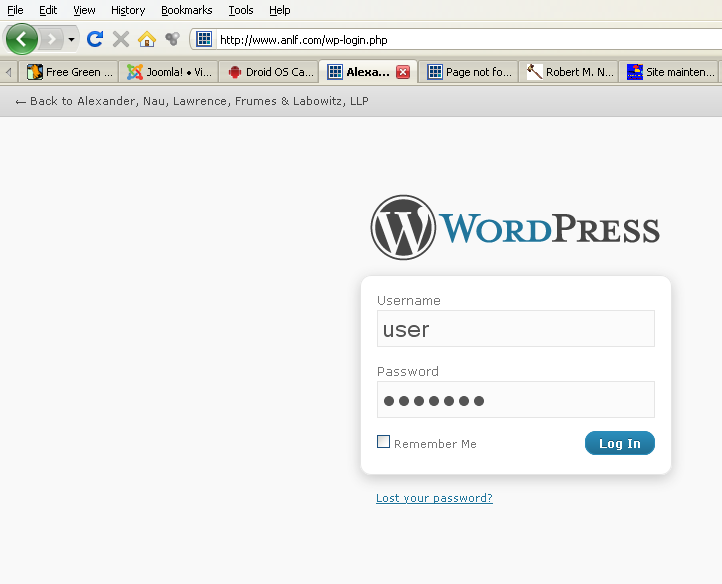
log onto backoffice
You will be taken to the back office. From here locate the PAGES section (on the left) and click on the “Pages” link.
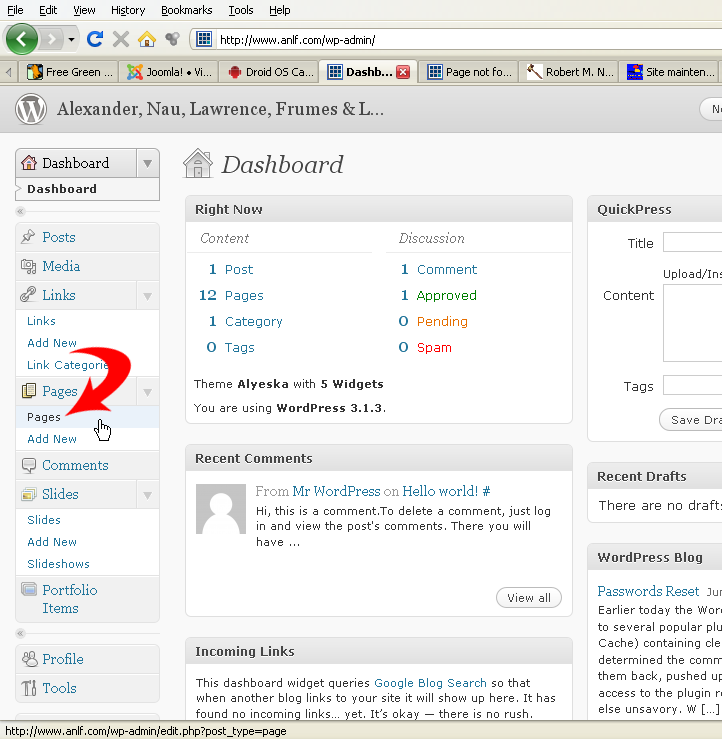
back office
This will take you to the pages menu – find your bio, roll over your name, and click on the edit link to edit the page.
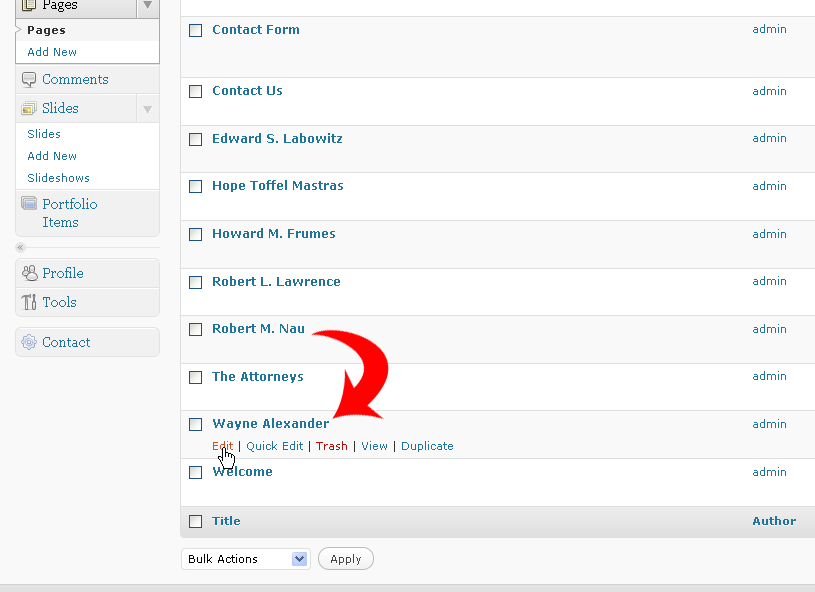
edit bio
At the point you will be a in full-featured editor, similar to MS Word or any word processor. Roll over the icons to see what function they serve. If you’re just doing text then it’s fairly self-explanatory. If you’re not sure of what something does, don’t click on it.
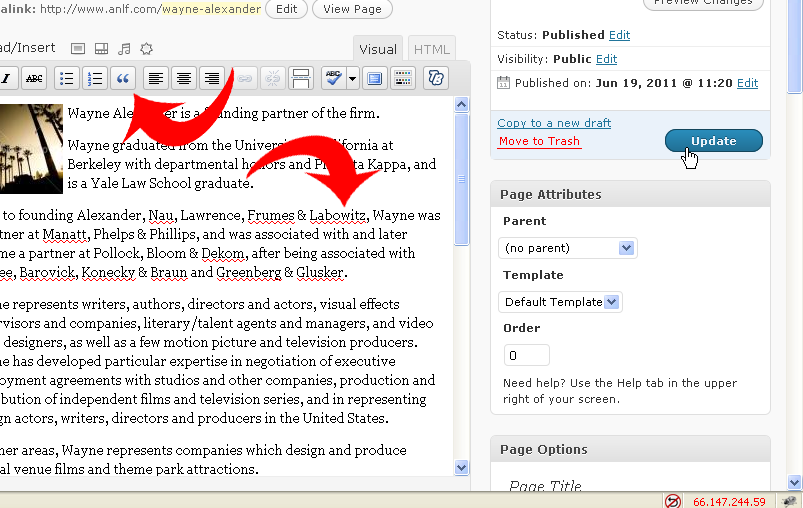
edit bio text
To see the page in the context of the website, use the PREVIEW BUTTON on the right side of the page. A new tab or window will open on your browser to show you what your editing looks like.
To undo any mistakes, use CONTROL (COMMAND) Z. This is a standard UNDO shortcut for all computers.
If you’re finished with editing, the page still has to be saved for the changes to take effect.
IF YOU DO NOT SAVE YOUR WORK BY CLICKING “UPDATE” on the right side of the editor, your changes will be lost.
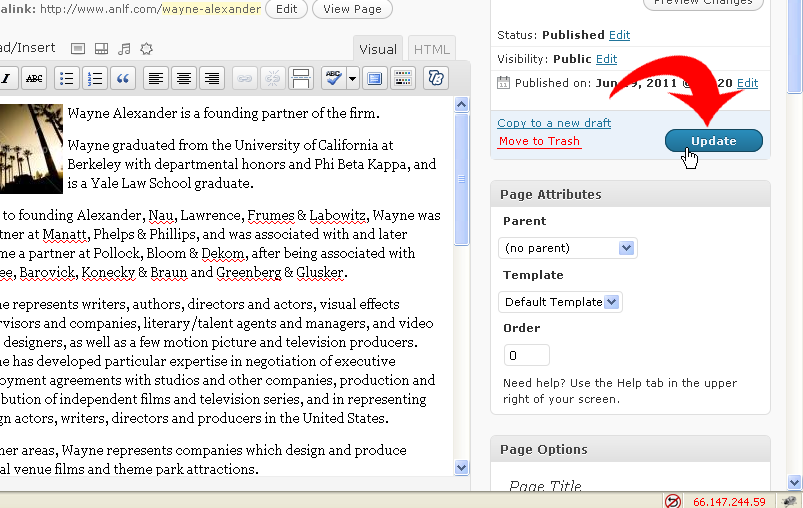
save the changes
Once UPDATED, the changes are immediately used on the website.
Click on LOG OUT (top right) and you’re done.
Please contact mark@visionstrike.com if you have questions.